
Turn your iPhone or Android phone into a studio-quality wireless microphone for your Mac or Linux computer. CastSound routes high-definition voice over Wi-Fi or USB cable with built-in Acoustic Echo Cancellation (AEC), completely replacing external desktop mics or headset microphones.


Prepare
Put your devices on the same network
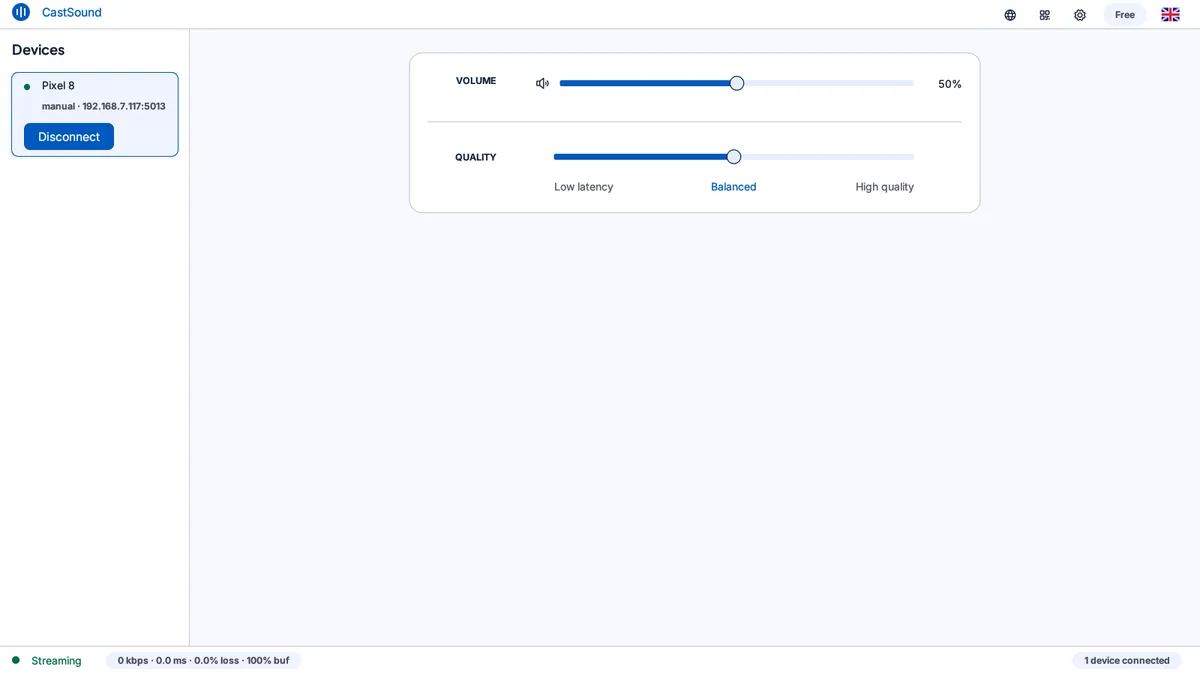
Open CastSound on your computer and on your phone. Connect both to the same Wi-Fi network, or connect with a USB cable for the lowest latency under 10ms. On the phone, allow microphone and local-network access when prompted.
Connect
Choose the device you recognize
- Tap your computer’s name in the CastSound phone app, or scan the pairing code.
- Confirm the connection request on your computer screen.
- In your computer’s Sound Settings or meeting app (Discord, Zoom, Meet, OBS), choose CastSound Microphone as your input device.
If the device is not listed, scan the code shown on the computer or enter the local address displayed by CastSound.
Use CastSound
Choose CastSound in the app you are using
Speak toward your phone naturally. CastSound’s Acoustic Echo Cancellation (AEC) and Automatic Gain Control (AGC) ensure your voice sounds clear without room echo or feedback loops, even while computer audio plays aloud through your speakers. You can also turn on the webcam or speaker at the same time.
If you get stuck
Check these three things
- CastSound Microphone is selected as the default input device in your operating system or meeting app.
- Microphone permission is granted in phone Settings > CastSound.
- The phone microphone is unmuted in both the CastSound app and your desktop call app.
Still not connected? Try the USB tethering guide or contact support.