
Mac mini and Mac Studio computers are powerful desktop workstations, but their built-in speaker is quiet and there is no built-in microphone. CastSound lets you use the iPhone or Android phone you already own as a dedicated, high-quality speaker and studio microphone.


Prepare
Put your devices on the same network
Place your phone next to your Mac or monitor. Connect both devices to the same local Wi-Fi, or connect via a USB cable for the lowest possible latency under 10ms.
Connect
Choose the device you recognize
- Open CastSound on your Mac and on your phone.
- Tap your Mac in the CastSound phone app to connect.
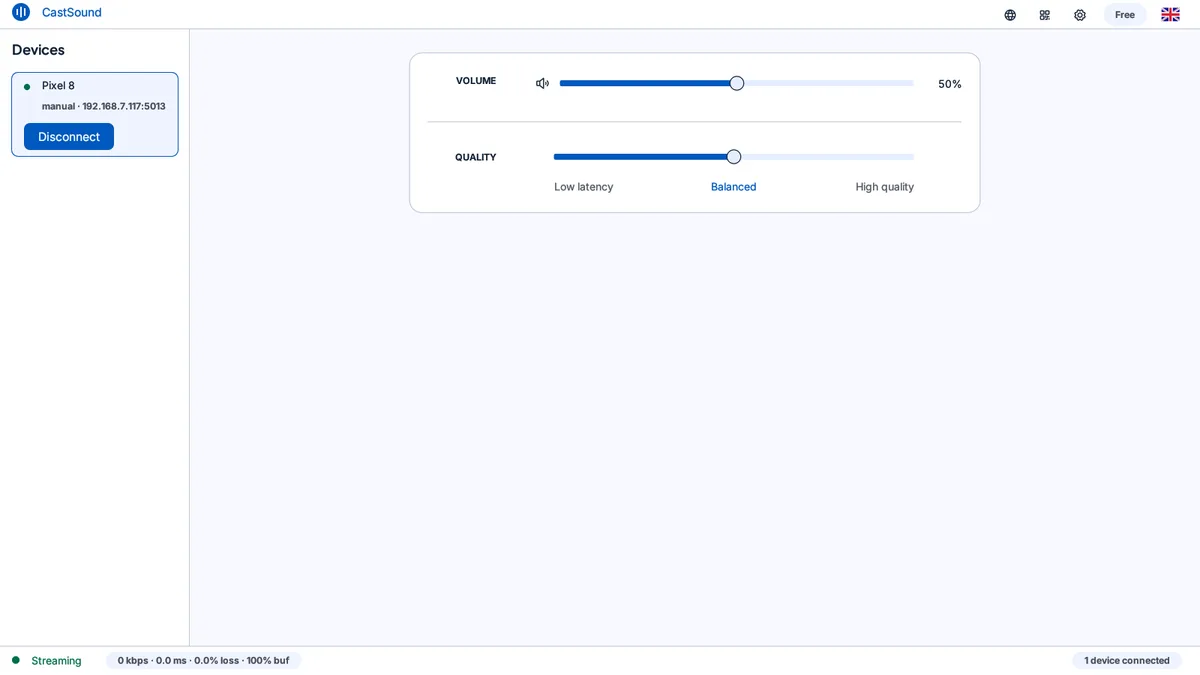
- In macOS System Settings > Sound, choose CastSound for both Output (Sound) and Input (Microphone).
If the device is not listed, scan the code shown on the computer or enter the local address displayed by CastSound.
Use CastSound
Choose CastSound in the app you are using
Your phone now functions as full external PC peripherals. System sound, music, and notification chimes play through your phone, while video calls on Zoom, Google Meet, or Slack capture crystal-clear voice through your phone microphone.
If you get stuck
Check these three things
- CastSound is selected as both the Input and Output device in macOS Sound Settings.
- Microphone and local-network permissions are granted in macOS Security & Privacy settings.
- Your phone screen is kept awake or CastSound is allowed to run in the background.
Still not connected? Try the USB tethering guide or contact support.