
CastSound is the fastest way to cast all computer sound directly to your phone. Whether you are walking away from your desk, using your phone headphones, or need a wireless speaker, audio follows you with zero lag and no complex Bluetooth pairing.


Prepare
Put your devices on the same network
Open CastSound on both your computer and phone. Connect both to the same Wi-Fi network, or connect them via USB cable for under 10ms latency. Keep both apps open on their connection screens.
Connect
Choose the device you recognize
- Select your computer name from the list on your phone.
- Confirm the connection on your computer screen.
- Choose CastSound as your primary audio output device in your system sound settings.
If the device is not listed, scan the code shown on the computer or enter the local address displayed by CastSound.
Use CastSound
Choose CastSound in the app you are using
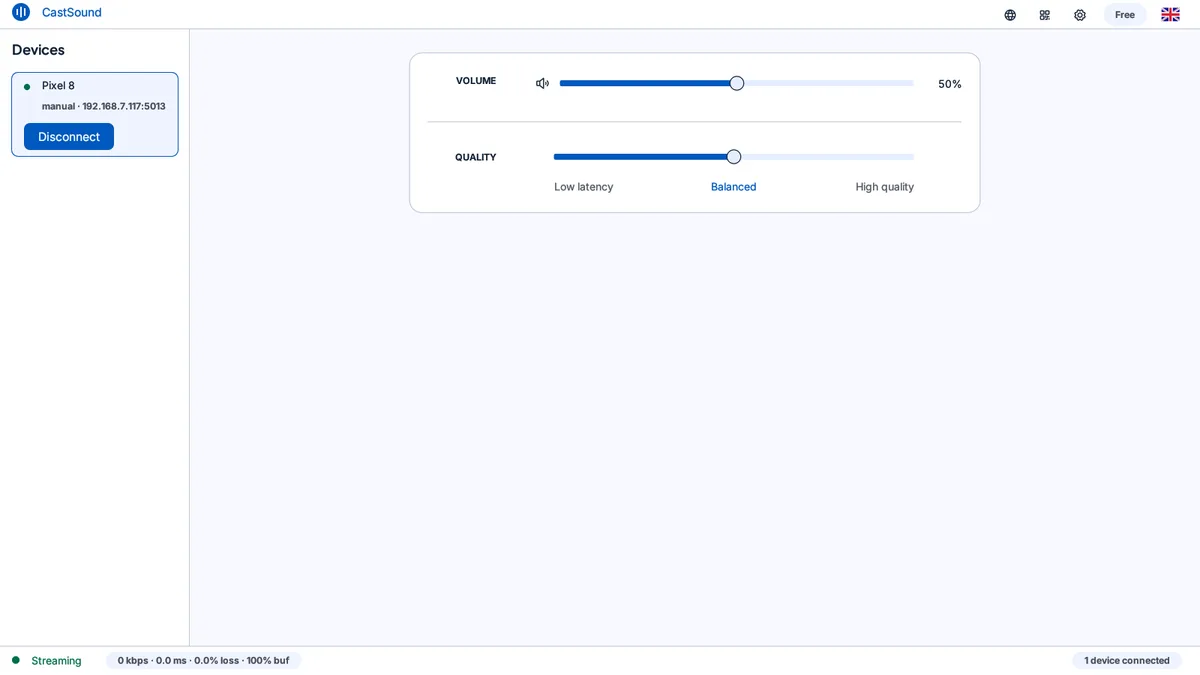
Play any audio on your computer: YouTube, Spotify, games, or movies. All sound instantly streams to your phone speaker or connected headphones. You can also turn on your phone microphone or camera at any time to stream back simultaneously.
If you get stuck
Check these three things
- CastSound is selected as your system audio output device.
- Both devices are connected to the same Wi-Fi network or tethered via USB.
- Volume levels are turned up on both the computer and phone.
Still not connected? Try the USB tethering guide or contact support.